
how to share a digital business card
How to Share a Digital Business Card
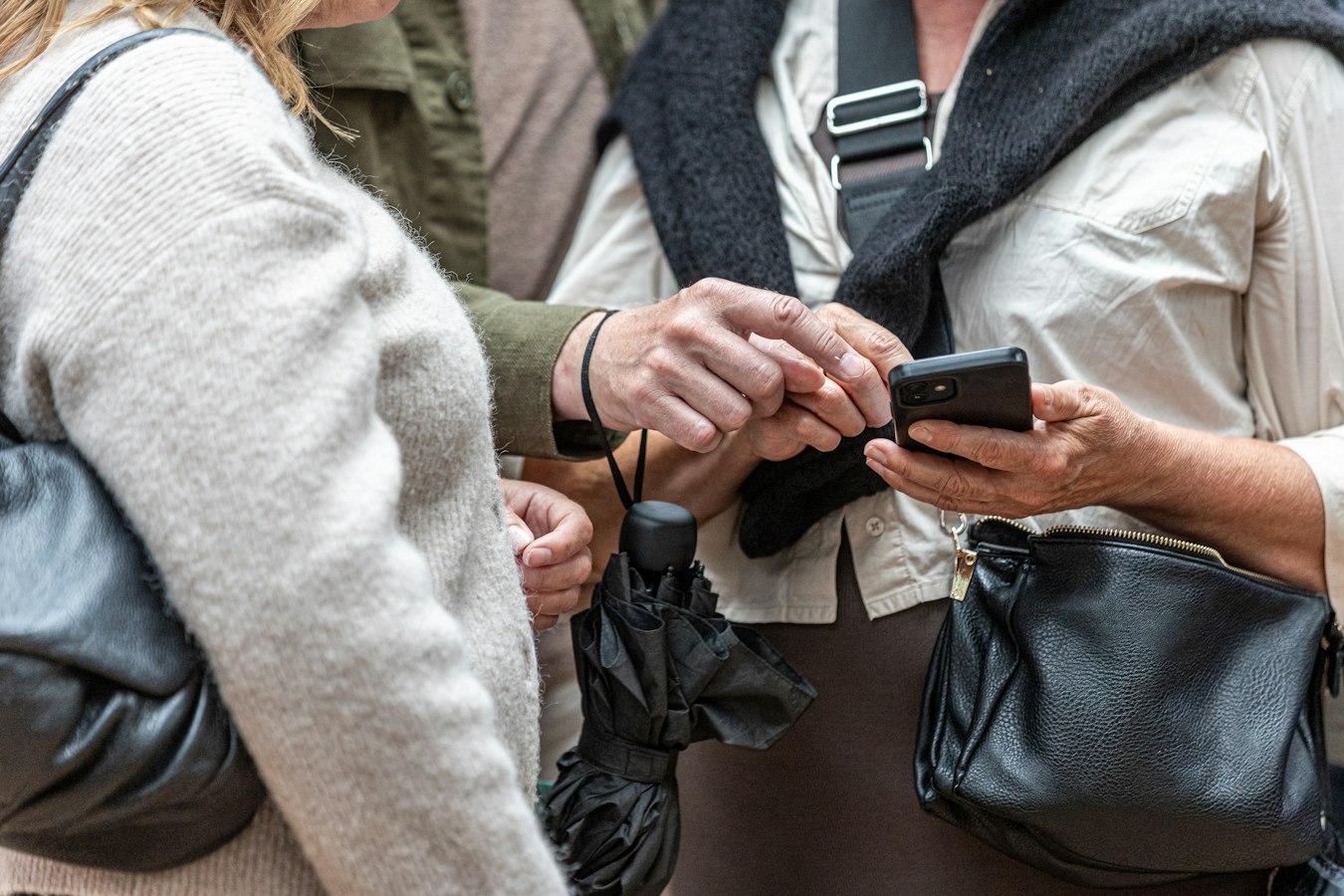
How to Share a Digital Business Card: A Situation-by-Situation Guide
You just had a great conversation. Maybe it was at a coffee meeting, a conference hallway, or a video call that ran long in the best way. The person across from you wants your details. You have a digital business card ready to go.
And then, for just a second, you hesitate. How do I actually hand this over without making it weird?
This guide is for that moment. It covers the most common sharing situations, text, email, and plain link, and gives you simple, human ways to handle each one. No tech jargon. No pressure. Just practical moves that feel like a natural part of the conversation.
Why Sharing a Digital Card Can Feel Awkward (And Why It Doesn't Have To)
The awkwardness usually comes from one fear: that the other person will feel like they've been handed a sales tool instead of your contact info.
That fear makes sense. A lot of digital card services lean into "capture" language and funnel thinking. But sharing your card doesn't have to feel that way. When the goal is simply here's how to reach me, the card is just a more useful version of a paper one.
The other worry is tech friction. Will they need to download something? Create an account? Figure out a new app?
With a good digital card, the answer is no. A digital business card that works without an app opens in any phone browser, no signup required. The recipient taps a link, sees your info, and saves it to their contacts in a few seconds. That's it.
Once you know that's how it works, the sharing part gets a lot easier.
Sharing Over Text: Keep It Short and Human
Text is probably the fastest way to share your card. You can do it in the moment, right after you meet someone, or a few hours later as a natural follow-up.
The key is to keep it conversational. You're not sending a newsletter. You're just finishing a conversation.
A few messages that work:
"Great meeting you today. Here's my card so you have my info: [your link]"
"Happy to send you that report. Here's my card first so you know who it's coming from: [your link]"
"Was good talking, my cell, email, and LinkedIn are all here: [your link]"
What makes these work is context. You're reminding them who you are and why you're sending the link, in one or two sentences. The link doesn't need explanation. Most people are comfortable tapping a link in a text from someone they just met.
If you're texting someone you haven't met yet, a warm introduction, say, add one line about who you are before the link. That's enough.
Sharing by Email: Put the Link Where Eyes Already Go
Email gives you a little more room, but that doesn't mean you need to use it. Most people scan email quickly. The best place for your card link is somewhere obvious.
In the body of an email:
Drop it in naturally near the end: "I've included my card below in case you want to save my details." Then a line with the link, or a short text button if your email client supports it.
In your email signature:
This is where a digital card really earns its place. Instead of a signature full of static text that goes stale the moment your title changes, your link always points to the current version of your card. One small link in your signature, and every email you send becomes a way for people to save your info.
If you use Gmail or Apple Mail, there are specific guides on adding it: adding a digital business card to Gmail or setting up a digital business card in Apple Mail are both straightforward.
In a follow-up after a meeting:
This is one of the best times to share. You already have a reason to email, and including your card feels helpful rather than promotional. Something like: "Good to connect earlier. My card is linked below if you want to save my number."
Sharing a Plain Link: The Quietest Option That Always Works
Sometimes you don't need any message around the link at all.
Drop it in a Zoom chat. Add it to your LinkedIn profile. Put it in a Slack bio. Include it in a calendar invite. Paste it into a conference networking app. A plain link works in all of these places because the card page itself does the explaining.
When someone taps your link, they see your name, your photo if you've added one, and your contact details. There's a button to save your info directly to their phone's contacts. The whole thing takes less than ten seconds.
With BeamHello, your card lives at a URL you own. You can update it any time. If your phone number changes next year, you fix it once and every link you've ever shared now points to the right info. No reprinting. No chasing down old cards.
For situations where you're sharing with a lot of people at once, a panel, a class, a group intro, putting the link in a shared doc or chat is actually better than paper cards. Everyone gets the same current information, and they can save it when it's convenient for them.
A Word on What the Recipient Experiences
It's worth thinking about this from the other side for a moment.
Someone taps your link on their phone. A page loads in their browser. It looks clean and professional. They see your name, your role, maybe a headshot. There are buttons for your phone number, email, and any other links you've included.
At the bottom, there's a "Save contact" button. They tap it. Their phone's native contacts app opens with your info pre-filled. They hit save. Done.
They didn't download anything. They didn't create an account. They didn't have to type out your email address from a paper card. They just saved your contact in about the same time it takes to unlock their phone.
That experience is the reason a digital card actually gets saved instead of ending up in a pocket or a drawer. There's a fuller look at what this experience is like in what happens when someone receives a digital business card, if you want to share it with someone who's curious about the format.
A Few Situations Worth Knowing About
After a video call: Drop the link in the chat before the call ends. It takes three seconds and means they leave with your contact info rather than just a name in their inbox.
At an in-person event: You can show someone your phone's QR code and let them scan it. Or just text yourself their number, then follow up with your card link in that same thread. Either way works.
In a LinkedIn message: Paste your card link directly in the message. It's much simpler than asking someone to look through a PDF or forward a vCard file. For more on this, the digital business card LinkedIn guide goes deeper.
When someone asks for your card and you're not prepared: This is the best argument for keeping your link somewhere obvious on your phone. Add it to your notes app, your lock screen, or a widget. Then you're never caught off guard.
For teams and agencies: If you're rolling out digital cards for a whole team, the sharing piece matters as much as the setup. A consistent card format means everyone shares the same experience. The guide on how to create a digital business card for a team covers the admin side of that well.
The through line in all of these situations is the same: sharing your card should feel like handing someone a useful thing, not like closing a deal. When the experience is easy for them and natural for you, it usually lands that way.
Keep the message short. Trust the link. Let the card do its job.