
QR code business card
QR Code Business Card: Fix Yours So It Gets Scanned
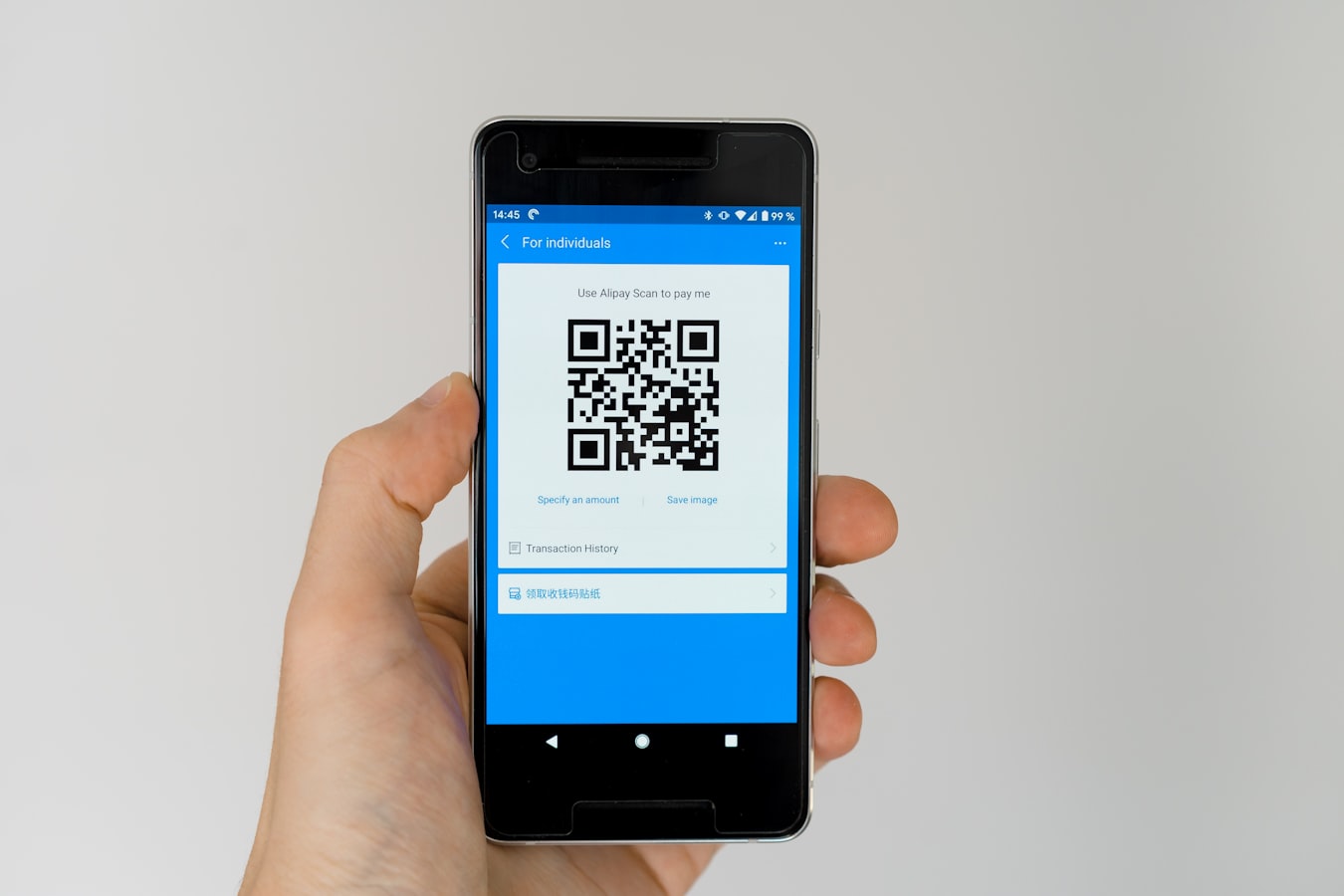
QR Code Business Card: Why Most Get Ignored and How to Fix Yours
You print a QR code on your business card, hand it to someone, and feel good about being modern. Then nothing happens. No scan. No saved contact. The card ends up in a pocket, then a pile, then the recycling.
That experience is more common than it should be. The QR code is not the problem. The choices around it usually are. This guide walks through those choices, destination, design, placement, and context, so your QR code business card is actually worth pulling out a phone for.
Why Most QR Code Business Cards Don't Get Scanned
People do not scan QR codes out of curiosity. They scan when the value is obvious and the effort is low. Most QR code cards fail one of those two tests.
The value problem is the bigger one. If your QR code lands on a PDF, a generic website homepage, or a vCard file that opens a confusing prompt, the person who just met you gets nothing useful. They came from a human interaction. They want to save your contact details, maybe see what you do. Sending them somewhere impersonal or broken breaks the moment.
The effort problem comes second. A QR code that is too small to focus on, too light to read, or buried under other card elements requires the person to work. Most people will not.
Then there is the trust gap. QR codes still make some people cautious. A code that looks thrown on, with no label or context, feels like a risk. A clean, labeled code on a well-designed card feels like an invitation.
Fix the value and the effort, and the trust mostly follows.
Choose the Right Destination Before You Generate Anything
This step comes first because the generator does not matter until you know where the code points.
Your three main options are:
A vCard file download. The code triggers a contact file download. Some phones handle this gracefully. Others open a browser tab that looks alarming. It is inconsistent, and inconsistency costs you scans. If you want to understand how vCard files work, this plain-English guide on what is a vCard is a good starting point.
Your website or social profile. This works if your site is fast and mobile-ready, and if it clearly tells someone how to reach you. Most websites are not built for that single job.
A live digital card URL. This is the strongest option. A URL that opens a clean, mobile-friendly page with your name, role, contact details, and a one-tap save button does exactly what the person in front of you needs. No confusion, no app to download, no signup required.
A live URL also lets you update your details without reprinting anything. If you change jobs or get a new number, the QR code on your existing cards still works, because the destination updates in place. That alone is reason enough to go this route.
For more on what is a digital business card and how the live-URL model works, that article covers it well.
Why Free QR Generators Can Leave You With a Dead Link
Many free QR generators make a "dynamic" code. The code does not hold your URL. It holds the generator's short link, which then forwards to your page. That sounds handy, since you can change the destination later. The catch is that free tiers expire. The company may shut down, put the link behind a paywall, or stop forwarding when a trial ends.
When that happens, everyone who scans your printed card gets an error page or the generator's homepage, and the only fix is a reprint.
The fix is simple. Point the code straight at a URL you control that already updates on its own, like your digital card. Then you get the "change it later" benefit without paying a generator for it, and a plain static code that never expires.
QR Code Design: The Rules That Actually Matter
QR codes have error correction built in, which means they can be styled and still scan reliably. That is good news. It does not mean anything goes.
Size. The minimum printable size most phones can reliably read is about 2 cm x 2 cm (roughly three-quarters of an inch square). On a standard business card, that means your QR code should be at least that size, and ideally closer to 2.5 cm. Smaller than that and the camera struggles to lock on.
Contrast. Dark code on a light background. Always. Pale gray on white fails in anything but perfect lighting. Colored codes (say, navy on white) can work if the contrast ratio is high enough. Reversed codes, light on dark, work in some generators but not all phone cameras handle them equally. Test before you commit.
Quiet zone. This is the white space border around the code. Cutting into it to make the code fit somewhere is a common mistake that breaks scannability. Most generators include the quiet zone automatically. Make sure your designer does not crop it.
Embedded logos. You can put a small logo or icon at the center of a QR code. Keep it under 30 percent of the total code area. Above that, the error correction cannot compensate and scans start failing.
Label it. A small line of text below the code, something like "Scan to save my contact," removes the hesitation. People are more likely to scan when they know what happens next.
Also worth reading if you want to go deeper on the QR and NFC comparison: NFC vs QR Code Business Cards: How to Write an NFC Tag.
Test It Before It Goes to Print
Print is final. A QR code that will not scan on the printed card is decoration.
Generate the code as an SVG or a high-resolution PNG (at least 1000 x 1000 pixels), and pick error correction level Q or H if your generator offers it, especially if you add a logo. Then print a draft at real size on an office printer, cut it to card size (about 85 x 55 mm), and scan it with at least one iPhone and one Android using the built-in camera.
- Does it scan quickly from a normal arm's length?
- Does it open the right URL?
- Does the page load in a few seconds on mobile data?
- Does the page look right on a small screen?
If it will not scan, make the code bigger on the card or raise the error correction and regenerate. If the page is slow or looks off, fix the destination before you print anything.
Where to Put Your QR Code (and Where Not To)
Back of the card, corner or center. The back of a business card is clean territory. A QR code there has breathing room and does not compete with your name and title on the front.
Front of the card, bottom corner. This works if you have a minimal design. It signals that the code is important without overwhelming the layout.
Email signature. A small QR code in your email signature gives every email you send a scannable way to save your contact. It is a low-friction addition for people reading on a desktop.
Slide decks and proposals. If you present regularly, a QR code on your closing slide is a natural next step. People can scan while the slide is still up.
Where not to put it:
Glossy card finishes can cause glare that makes scanning unreliable, especially under fluorescent lights. Matte is safer. Small printed boxes, like the back of a name badge lanyard, are often too cramped to include a scannable code. And QR codes on folded items (like tent cards or brochures) sometimes land on a crease, which distorts the pattern.
Printing vs Going Fully Digital with Your QR Code Card
You have two approaches, and they are not mutually exclusive.
Printed card with a QR code. You keep the tactile handoff of a physical card and add a digital layer through the code. The card itself can go stale, but as long as the URL it points to stays current, the QR code keeps working. This is a good middle ground if you work in environments where handing something physical is expected.
Fully digital QR code card. Your QR code lives on your phone screen, in your email signature, or in a shared link. No printing. No reprinting. Nothing to run out of. You pull up the code, someone scans it, they have your details. The comparison between these two paths is covered in more depth in Paper Business Cards vs Digital: An Honest Comparison.
For freelancers and consultants, going fully digital often makes more sense. The workflows and reasoning are similar to what is covered in digital business card for freelancers and digital business card for consultants.
How to Make Yours in a Few Minutes with BeamHello
BeamHello turns your contact details into a digital card at a live URL. That URL is what your QR code points to. The person who scans it sees your name, role, contact info, and a way to save it to their phone in one tap. They do not need an app. They do not need to sign up for anything.
Here is the basic flow:
- Create your digital card on BeamHello and get your personal URL.
- Paste that URL into any QR code generator (most are free and straightforward).
- Download the QR code and add it to your card design, email signature, or phone wallpaper.
If your details change, you update them in BeamHello and the QR code on every card you have already handed out still works, because the URL is the same.
For people who share contacts often, knowing how to share contact information in the right moment matters as much as having the right tool. And if you want to think about what comes next after someone saves your card, how to follow up after a networking event picks up where the exchange leaves off.
A QR code is only as good as where it takes someone. Get that destination right, keep the design clean, and put the code where it will actually be seen. The rest is easy.
Put this into practice: see Apple Wallet business cards and digital business cards for teams. Free to start, and recipients never need an app.